> ## Documentation Index
> Fetch the complete documentation index at: https://developer.folk.app/llms.txt
> Use this file to discover all available pages before exploring further.
# Typeform integration using n8n
This guide walks you through building a no-code/low-code workflow in **n8n** that takes every new **Typeform** submission and creates (or updates) a contact in **folk** through our REST API.
## Prerequisites
| What | Why you need it |
| ---------------------------------------------------------------------------------------------------------------- | ---------------------------------------------------------------------------------------------------------- |
| A [Typeform](https://www.typeform.com/) account with an active form | The form will be the entry point that will collect the data you want in folk (name, emails, etc.). |
| [n8n](https://n8n.io/) (self-hosted or n8n Cloud) | n8n will receive the form submissions and create contacts in folk. |
| A folk workspace and [**API key**](https://developer.folk.app/guides/quick-start#step-1%3A-create-a-new-api-key) | The API key will allow n8n to perform requests on the folk’s API and create the contacts in the workspace. |
| Optional: a dedicated group in folk | This will keep the imported contacts organized and will let you filter or perform actions on them later. |
## Overview of the workflow
In this guide, we are going to create a n8n workflow that will add a person to a group in folk every time a Typeform form is submitted. If the person already exists in folk, we’ll update its information instead of creating a duplicate.
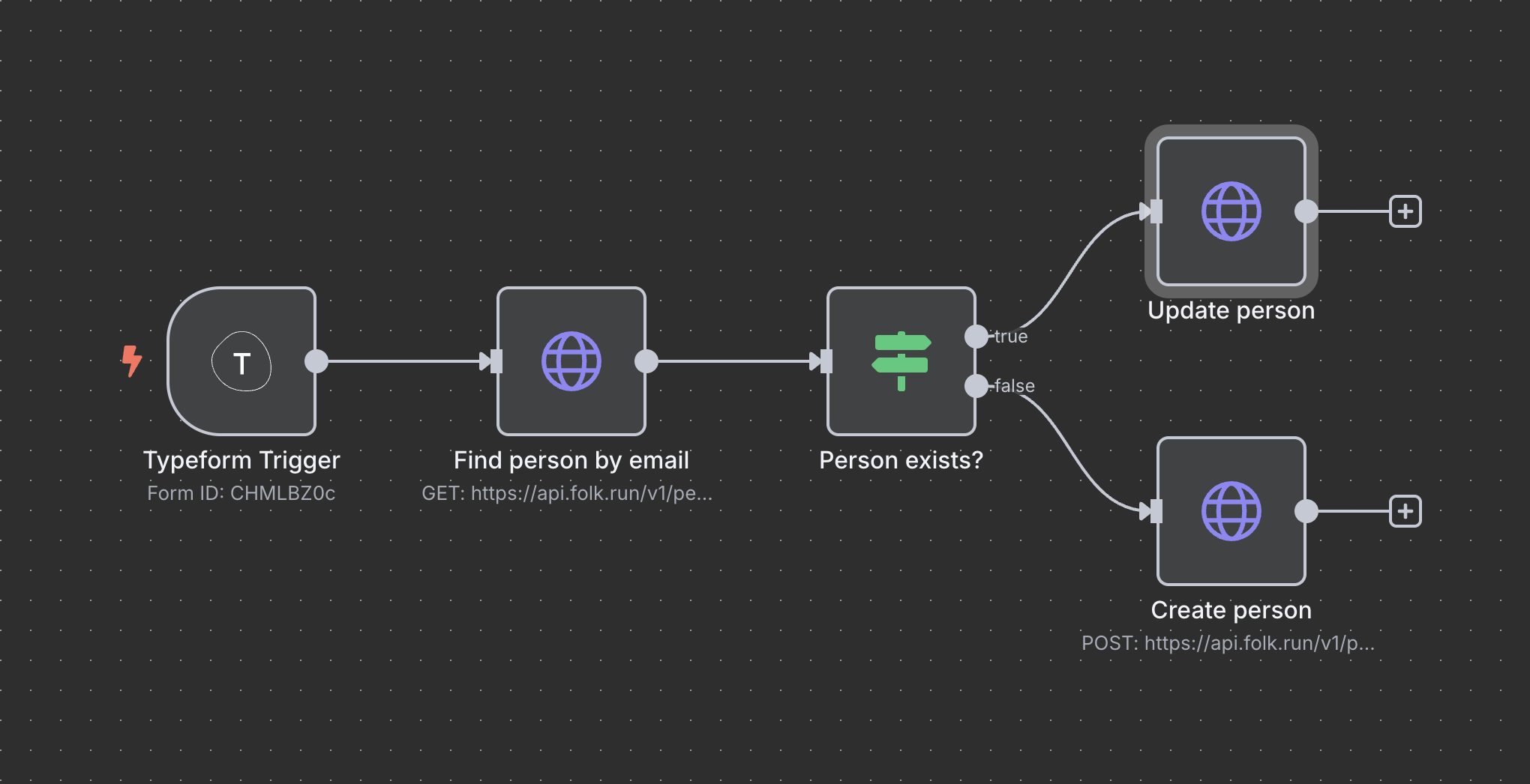
* **Typeform Trigger:** fires on every new form submission, the form data can then be used in the n8n workflow.
* **Find person by email and Person exists** (optional but recommended)**:** checks if the person already exists in folk to only create it if needed.
* **Update person:** update an existing person using the form information.
* **Create person:** create a new person using the form information.
The final flow will automatically add new contacts to a pipeline in folk when we receive Typeform submissions:
### Configure the Typeform trigger
The Typeform trigger will be the start of your flow, it will be executed every time the form is submitted and will send the information to n8n. The following steps will allow you to setup the trigger and test it:
* Go to your n8n workspace and [create a new workflow](https://docs.n8n.io/workflows/create/)
* Add the first step and search for Typeform Trigger
* If not already set, configure the [Typeform connection](https://docs.n8n.io/integrations/builtin/credentials/typeform/#using-api-token) in n8n and provide a Typeform personal token.
* Select the form you want to connect in n8n
* To test that the trigger is correctly setup, click on “Execute step” in n8n
* Then in Typeform, go to the selected form > Connect > Webhooks. You should see the test webhook added by n8n. Click on “View deliveries” and “Send test request”.
* The request should be successful and you should see the form fields in n8n.
### Search the person in folk
Once the form information are retrieved in n8n, we can perform [a search](https://developer.folk.app/api-reference/people/list-people) by email to check if the person already exists in the folk workspace:
* Add a new node to your workflow, search for “HTTP Request”, and select it.
* Set “Authentication” to “Generic Credential Type” and “Generic Auth Type” to “Bearer Auth”
* Set “Bearer Token” by creating a new credential
* Copy your API key from folk settings and set it as the “Bearer Token”
* Set the URL to `https://api.folk.app/v1/people`
* Toggle “Send Query Parameters”
* Set the search term “Name” to `filter[emails][eq]`
* Grab the Typeform Trigger “Email” field and drag it to “Value”
* Execute the step to check that you have a successful response from the API
If you want to customize your search, you can learn more about filterable
fields in the [API
documentation](https://developer.folk.app/api-reference/filtering).
### Add conditional logic if the person exists
Using the response from the folk API, we can branch the logic to have different flow if the person exists or not. To add the branching logic:
* Add a new node to the flow, search for “If” and select it
* Grab `items` from the API response and set it as the condition’s value
* Change the condition to “Array” > “is not empty” to check if the person already exists
### Update the existing person
If the person already exist, we can update its information to add it to the group and set its status. To do this:
* Add a new node to your workflow, search for “HTTP Request”, and select it.
* Set the method to `PATCH`
* Set the URL to `https://api.folk.app/v1/people/{{ $json.data.items[0].id }}` to update the first person matching the search
You can grab the `id` field and drop it in the URL field. Make sure to remove
spaces that might be inserted by n8n.
* Use the same authentication as before:
* Authentication: “Generic Credential Type”
* Generic Auth Type: “Bearer Auth”
* Bearer Auth: “folk” (or the name you gave it in the [Search the person in folk](https://www.notion.so/Search-the-person-in-folk-2228b88c446780a6b3d3cd0cfb763b04?pvs=21) step)
* Toggle “Send Body”, set “Specify Body” to “Using JSON”
* Set the JSON content to the following:
```
{
"groups": {{ JSON.stringify([...$json.data.items[0].groups, { id: 'grp_3cfa76bd-e513-492f-a2eb-0c2325dc21ac' }]) }},
"customFieldValues": {
"grp_3cfa76bd-e513-492f-a2eb-0c2325dc21ac": {
"Status": "Lead"
}
}
}
```
Replace the group ID with the one you want to use. You can retrieve the group
ID by [listing
groups](https://developer.folk.app/api-reference/groups/list-groups).
Other fields can be specified when updating a person. Check out the [endpoint
documentation](https://developer.folk.app/api-reference/people/update-a-person)
to learn more about the existing fields.
Make sure you specify existing groups when updating a person so it is not
removed from them.
* Execute the step, you should have a successful response from the API and the person should be added to the group with the correct status.
### Create a new person
If the person does not exist, we can create it and add it to the group. To do this:
* Add a new node to your workflow, search for “HTTP Request”, and select it.
* Set the method to `POST`
* Set the URL to `https://api.folk.app/v1/people`
* Use the same authentication as before:
* Authentication: “Generic Credential Type”
* Generic Auth Type: “Bearer Auth”
* Bearer Auth: “folk” (or the name you gave it in the [Search the person in folk](https://www.notion.so/Search-the-person-in-folk-2228b88c446780a6b3d3cd0cfb763b04?pvs=21) step)
* Toggle “Send Body”, set “Specify Body” to “Using JSON”
* Set the JSON content to the following:
```
{
"firstName": {{ JSON.stringify($('Typeform Trigger').item.json['First name']) }},
"lastName": {{ JSON.stringify($('Typeform Trigger').item.json['Last name']) }},
"emails": {{ JSON.stringify([$('Typeform Trigger').item.json['Email']]) }},
"phones": {{ JSON.stringify([$('Typeform Trigger').item.json['Phone number']]) }},
"companies": {{ JSON.stringify([{ name: $('Typeform Trigger').item.json['Company'] }]) }},
"groups": {{ JSON.stringify([{ id: 'grp_3cfa76bd-e513-492f-a2eb-0c2325dc21ac' }])}},
"customFieldValues": {
"grp_3cfa76bd-e513-492f-a2eb-0c2325dc21ac": {
"Status": "Lead"
}
}
}
```
Replace the group ID with the one you want to use. You can retrieve the group
ID by [listing
groups](https://developer.folk.app/api-reference/groups/list-groups).
Other fields can be specified when creating a person. Check out the [endpoint
documentation](https://developer.folk.app/api-reference/people/create-a-person)
to learn more about the existing fields.
* Execute the step, you should have a successful response from the API and the person should be created in the group with the correct information.
### Enable your workflow
Once ready, you can save you workflow and activate it in n8n. This will connect your workflow to the form and trigger it whenever the form is submitted.